
With the Sudozi app in Slack, you can:
- Approve or reject requests
- Get notified when your requests are approved or rejected
- Stay informed on requests for which you are an approver or watcher
- Forward documents to Sudozi
- Receive automated renewal reminders for contracts
The steps below outline how you can add the Sudozi app to your Slack workspace. Note, you must be a Sudozi Admin and a Slack Admin to complete these steps.
Step 1: Initiate integration
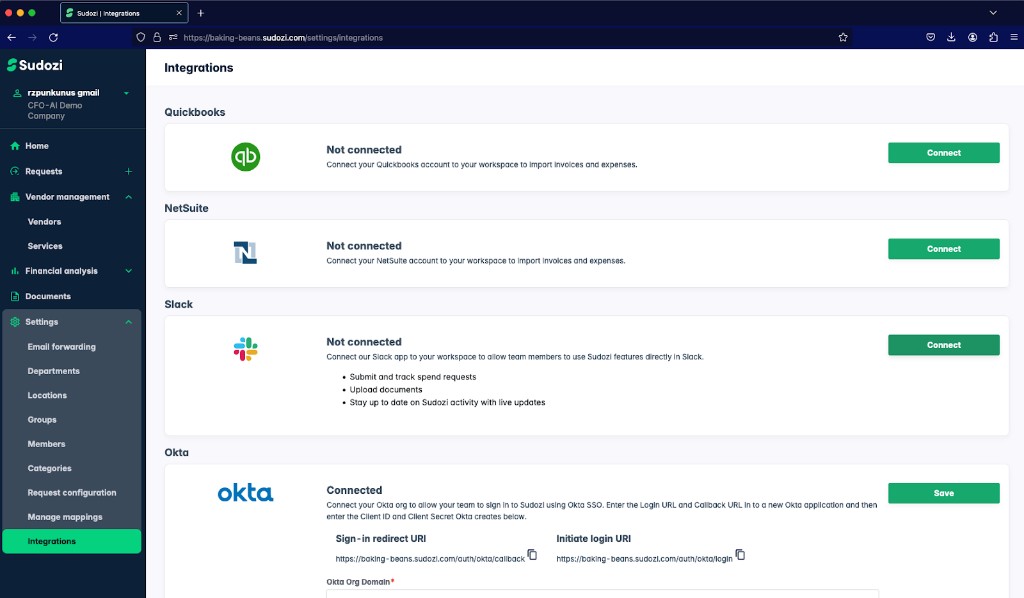
Navigate to the Settings > Integrations page and click Connect next to Slack.
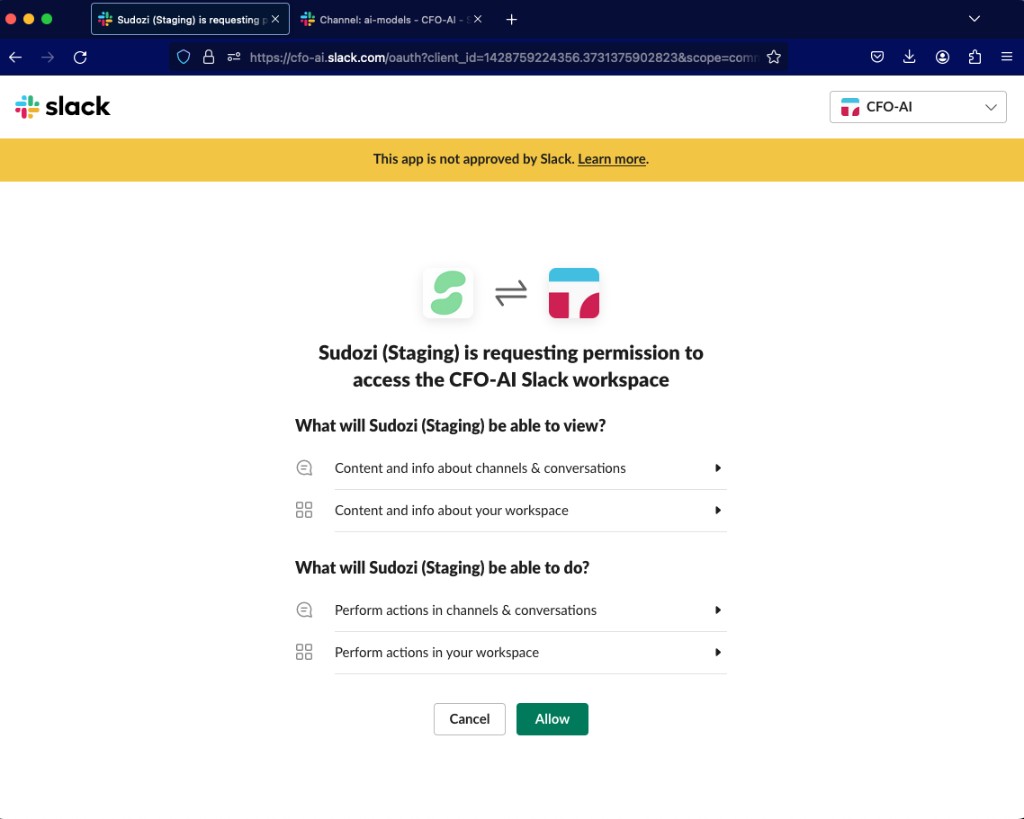
Step 2: Confirm workspace & click Allow
In the upper right hand corner, confirm that you can see the Slack workspace you intend to connect with Sudozi. Then click "Allow."
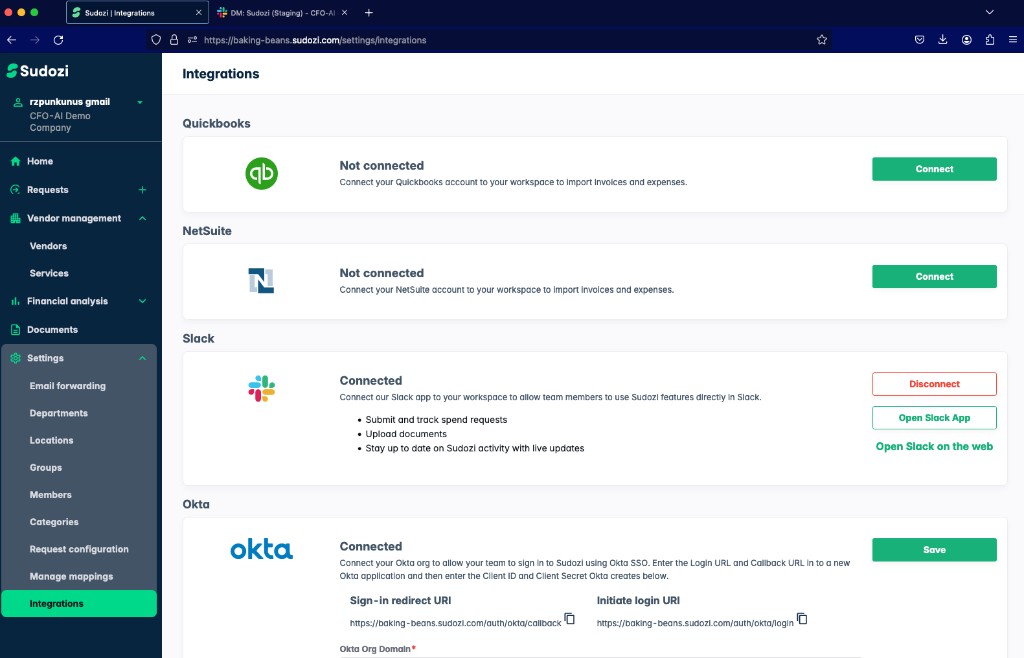
Now, when you return to the Settings > Integrations page, the Slack integration should show as connected.
Keep in mind: requesting permission to access your Slack workspace is a one-time step done by the Admin during the initial configuration of the Slack integration. All subsequent integrations by other users will not involve this step.